Automated Split Screen Layout
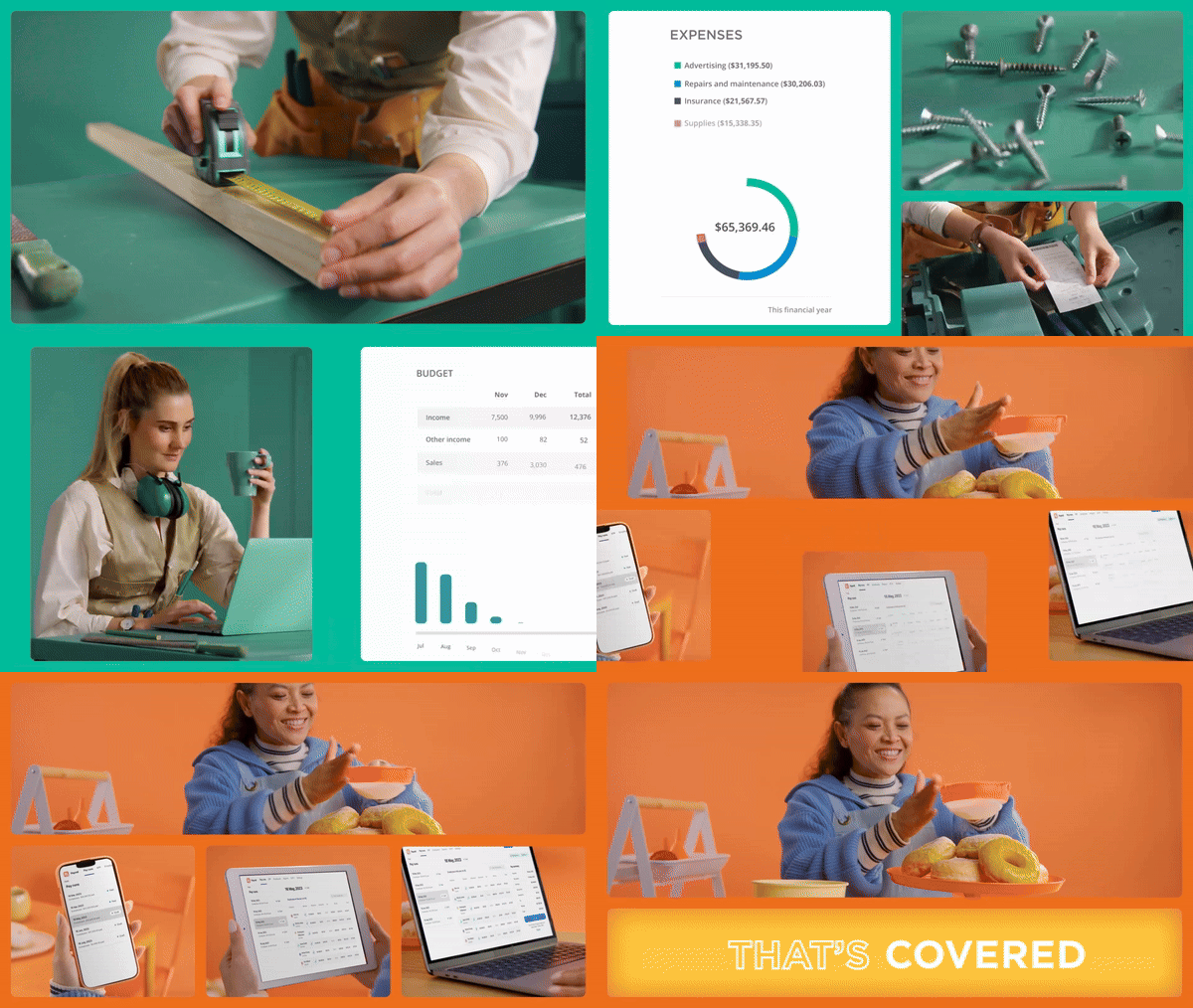
Automated Split Screen System Example
Working at Vidico, I find we use this kind of split-screen layout quite often, and manually creating and animating it is quite a time-consuming thing, so I created this automated split-screen system to facilitate the process.
You can create desired split-screen layouts by simply duplicating and renaming shape layers, and animating the layout with sliders.
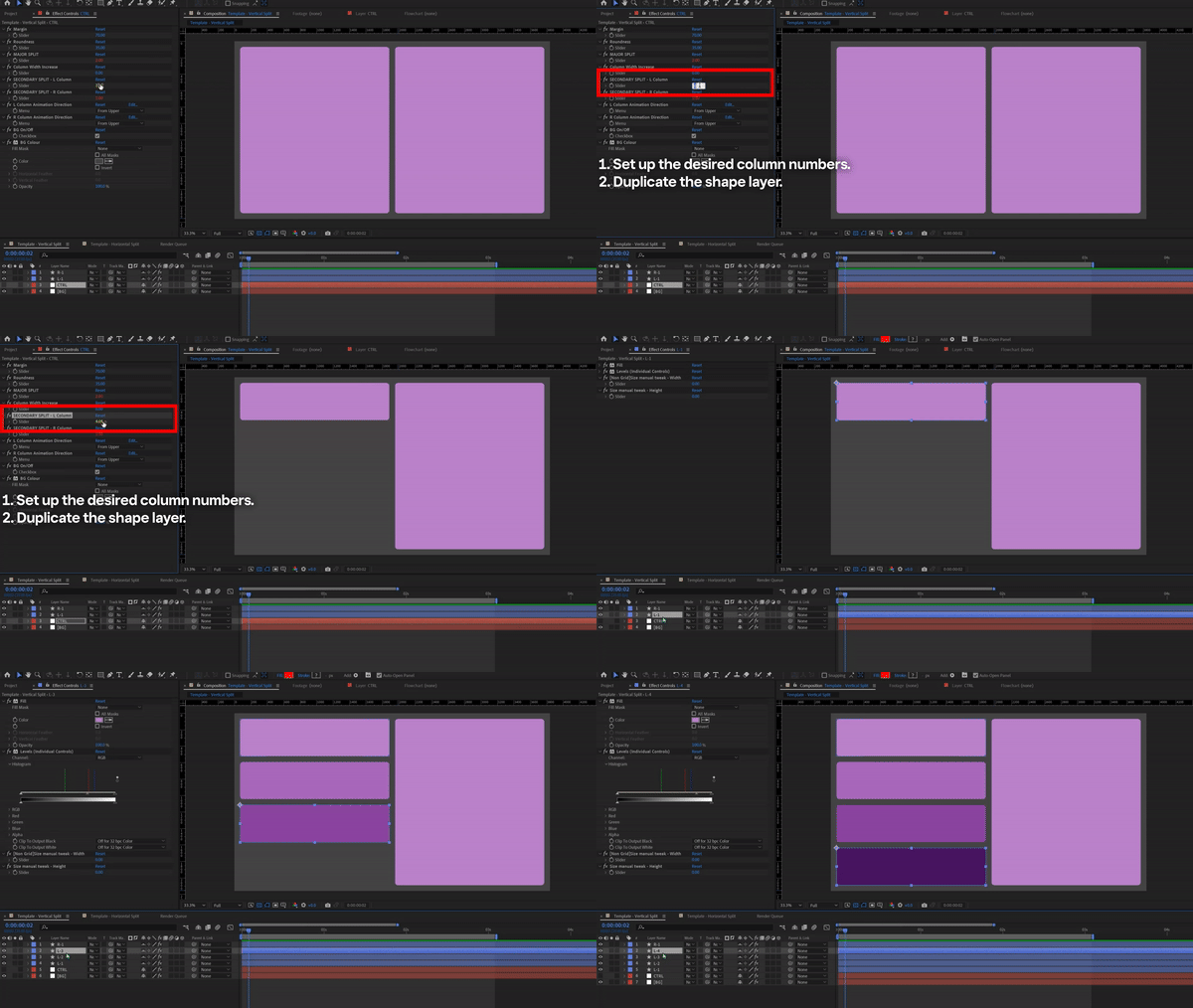
Automated Split Screen System Tutorial Snippet01
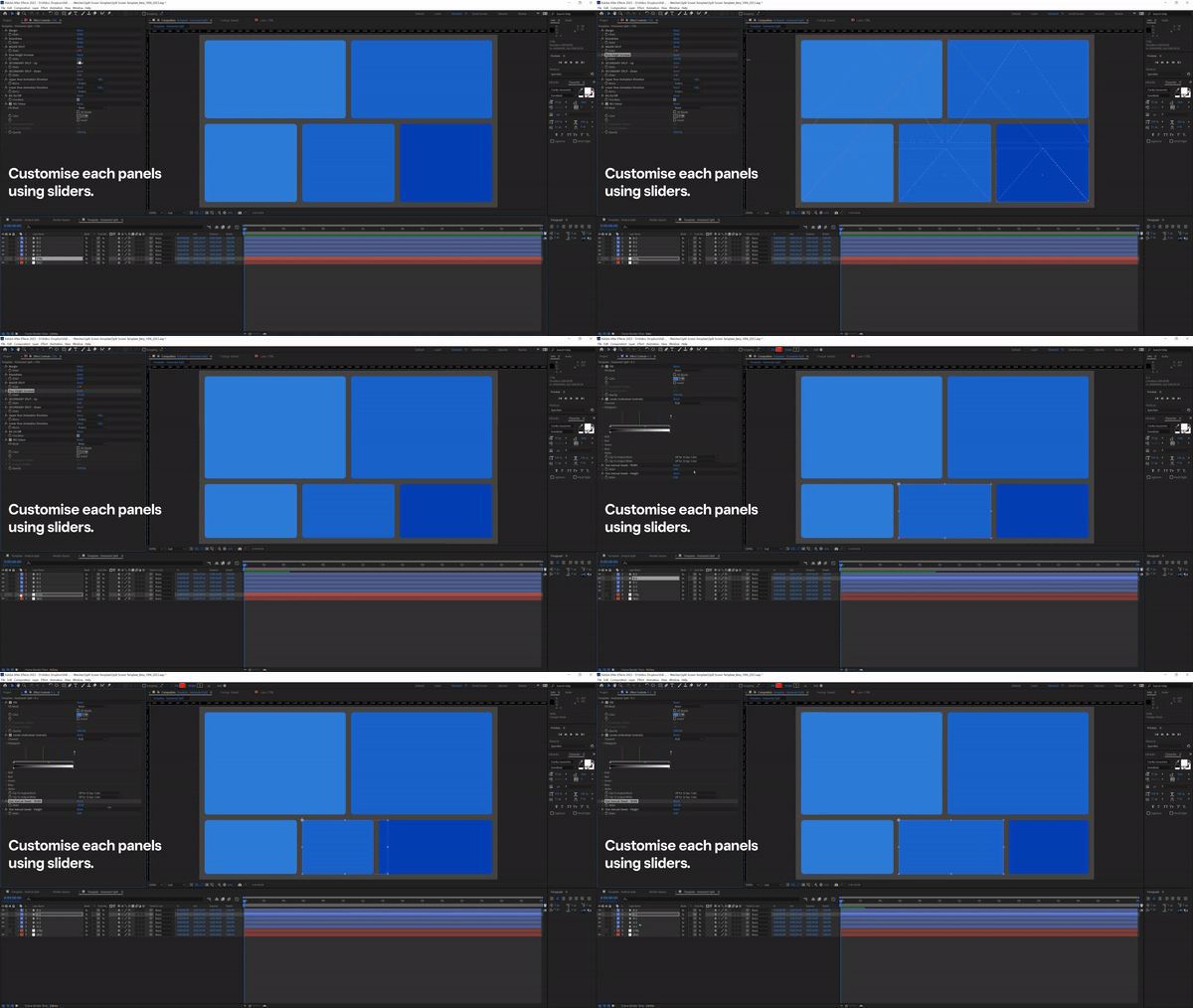
Automated Split Screen System Tutorial Snippet02
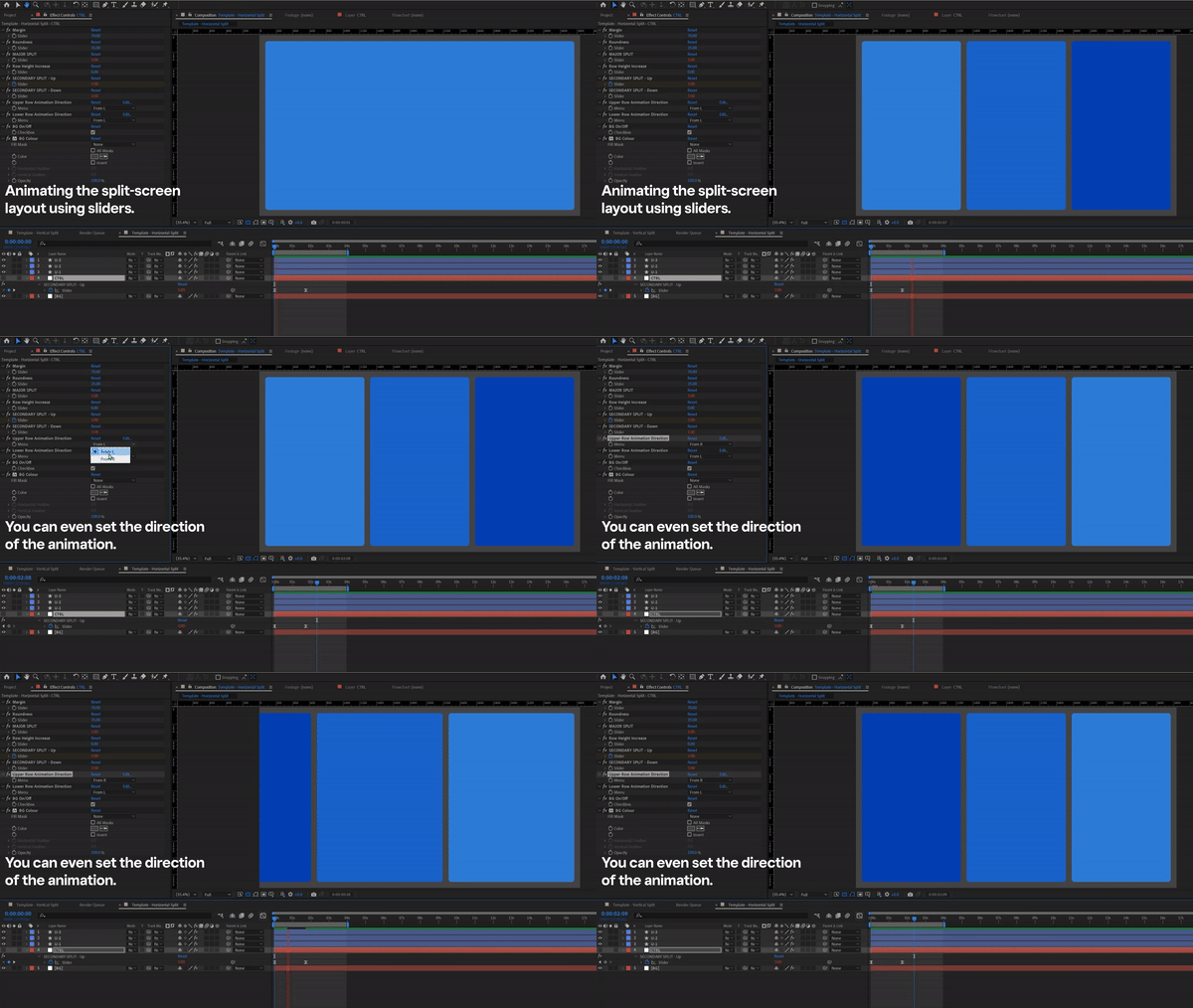
Automated Split Screen System Tutorial Snippet03
Main Features:
It works for any dimension. 16:9, 1:1, 4:5, 9:16 etc.
Split into a maximum of 2 columns or rows first (Major Split), then each section can be split into the desired number of blocks(Secondary Split).
Customise the size of the columns or rows created by the Major Split, then customise each block size created by the secondary split.
All the split can be animated. You can also define the direction of the animation for the Secondary Split (but not for the Major Split).
Control the margin and roundness at one central place.
Have the background on or off, and set the desired colour for the bg.
When you have more than one block created by the secondary split, the darker colour it is, the number in the layer’s name will be larger, which is set up as a visual cue to help you identify the corresponding layer faster.
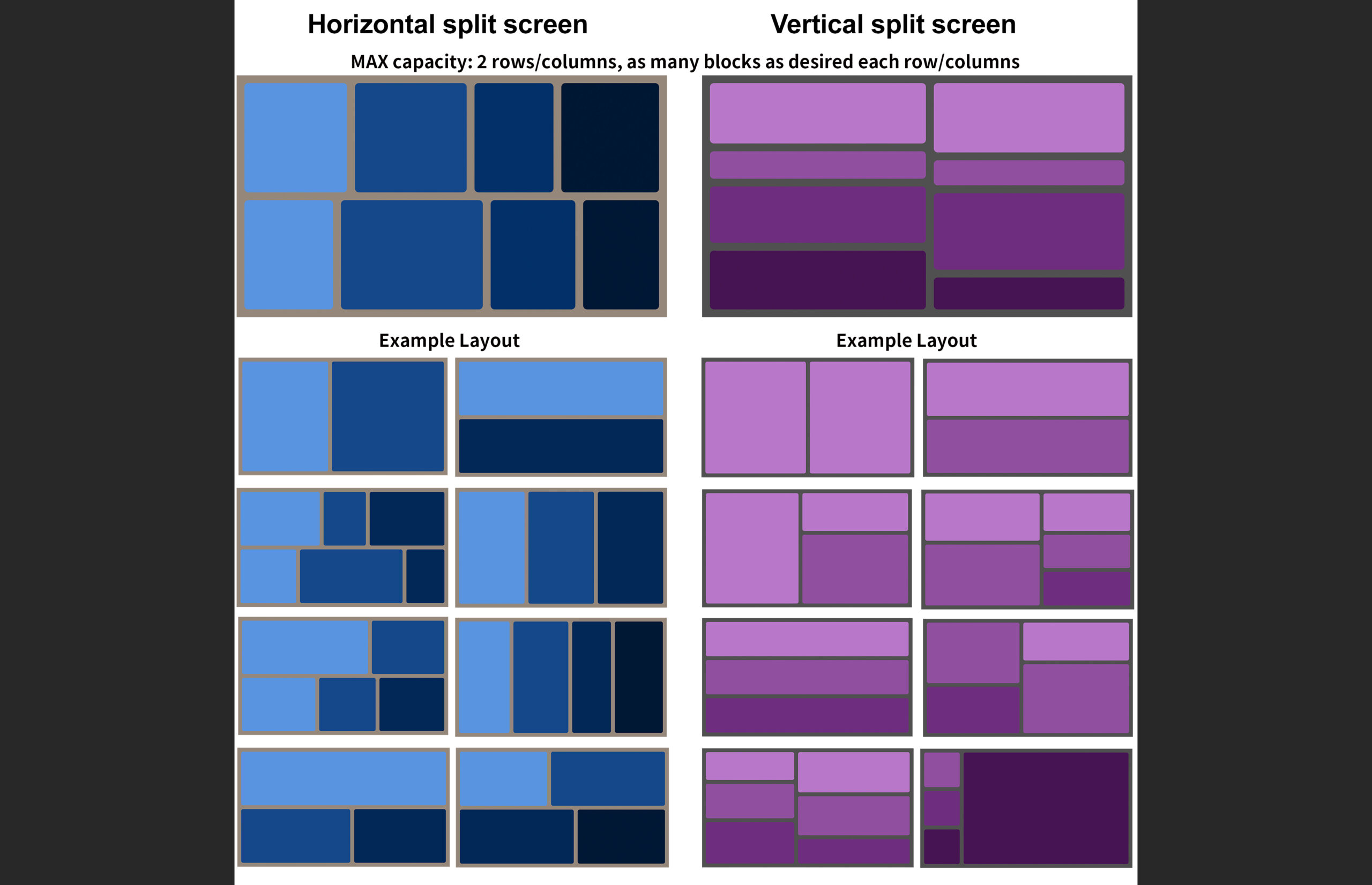
ContactSheet-001-scaled
Process:
Create the layout
Create precomp of the assets
Set Alpha matte & Parent
Animate in & out transition
Let me know if you have something that you’d like to make a dynamic template to speed up the process, I’m happy to help. Email me>>
Work // Details
Category
ae-expression
Date & Time
OCT 2023
Credits